Start with the space the page needs
A column grid divides the usable width of a page into vertical units. The gaps between those units are called gutters, and the space around the outside is the margin. Together, they give text, images, headings, and other elements a set of positions to work from. A grid is not a rule that every item must occupy one column; it is a way to make placement decisions consistently.
Before drawing columns, list what the page needs to hold. A reading-heavy article may need one generous text area and room for captions or supporting material. A portfolio page may need space for images with different proportions. Note which elements must be prominent, which need to sit together, and which can move or disappear on smaller screens. These relationships should shape the grid, rather than the other way around.
Choose columns, margins, and gutters
Begin with the page width, then set margins that keep content comfortably away from its edges. Divide the remaining width into equal columns with consistent gutters. You can start with a small number of columns for a simple composition or use more columns when you need varied widths. The best choice is not the one with the most divisions; it is the one that lets your actual content fit without awkward compromises.
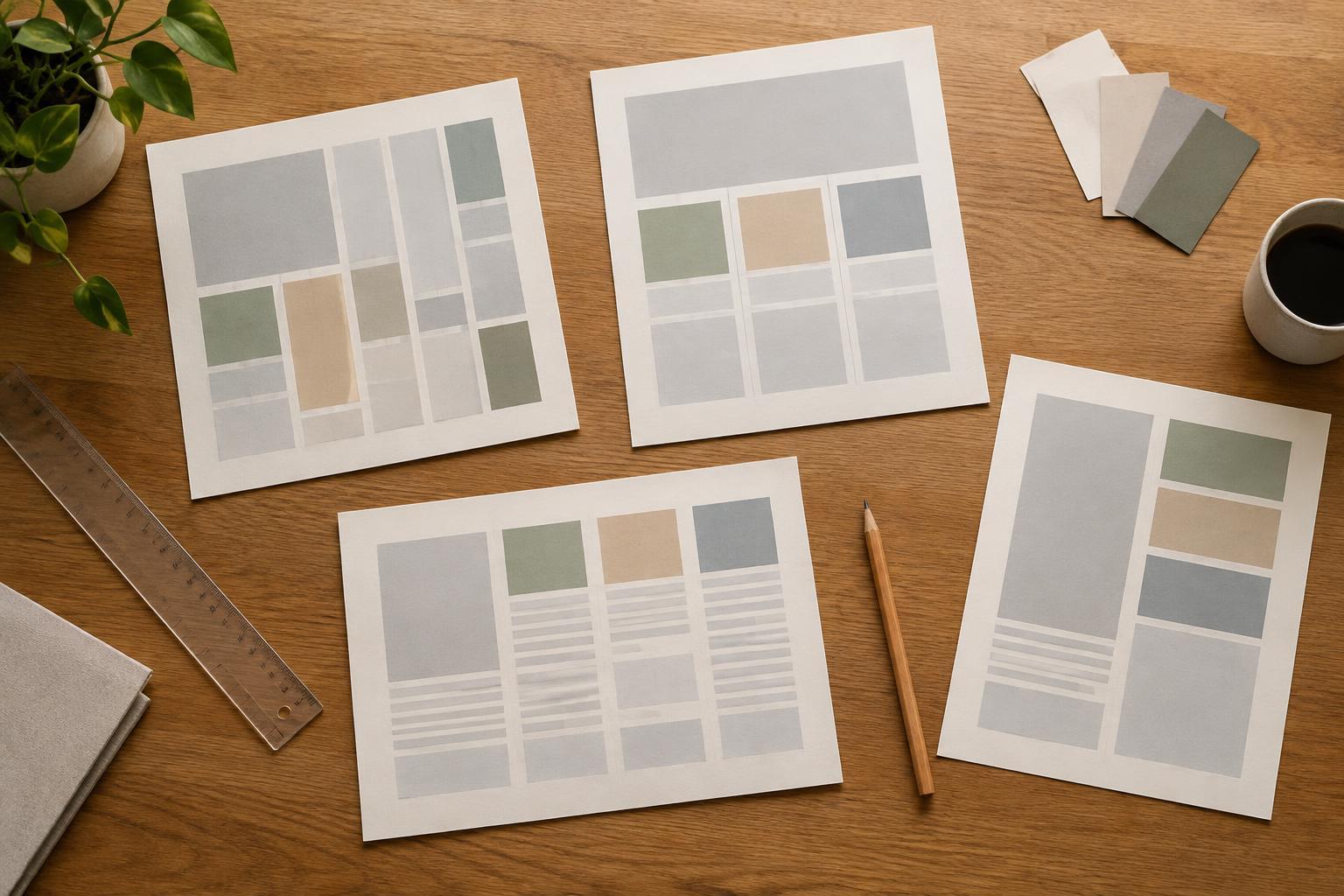
To check a proposed grid, sketch a few likely arrangements. Could a headline span the full content area while body text occupies a narrower portion? Could an image sit beside a short explanation without squeezing either one? If common arrangements require constant exceptions, try a different column count or adjust the gutters.
Gutters need enough space to separate neighboring elements, particularly when two text blocks sit side by side. Margins serve a different purpose: they frame the whole composition. Keep both visible while designing, even if your layout software hides the guides by default. This makes it easier to spot accidental misalignment.
Place content in spans, not isolated boxes
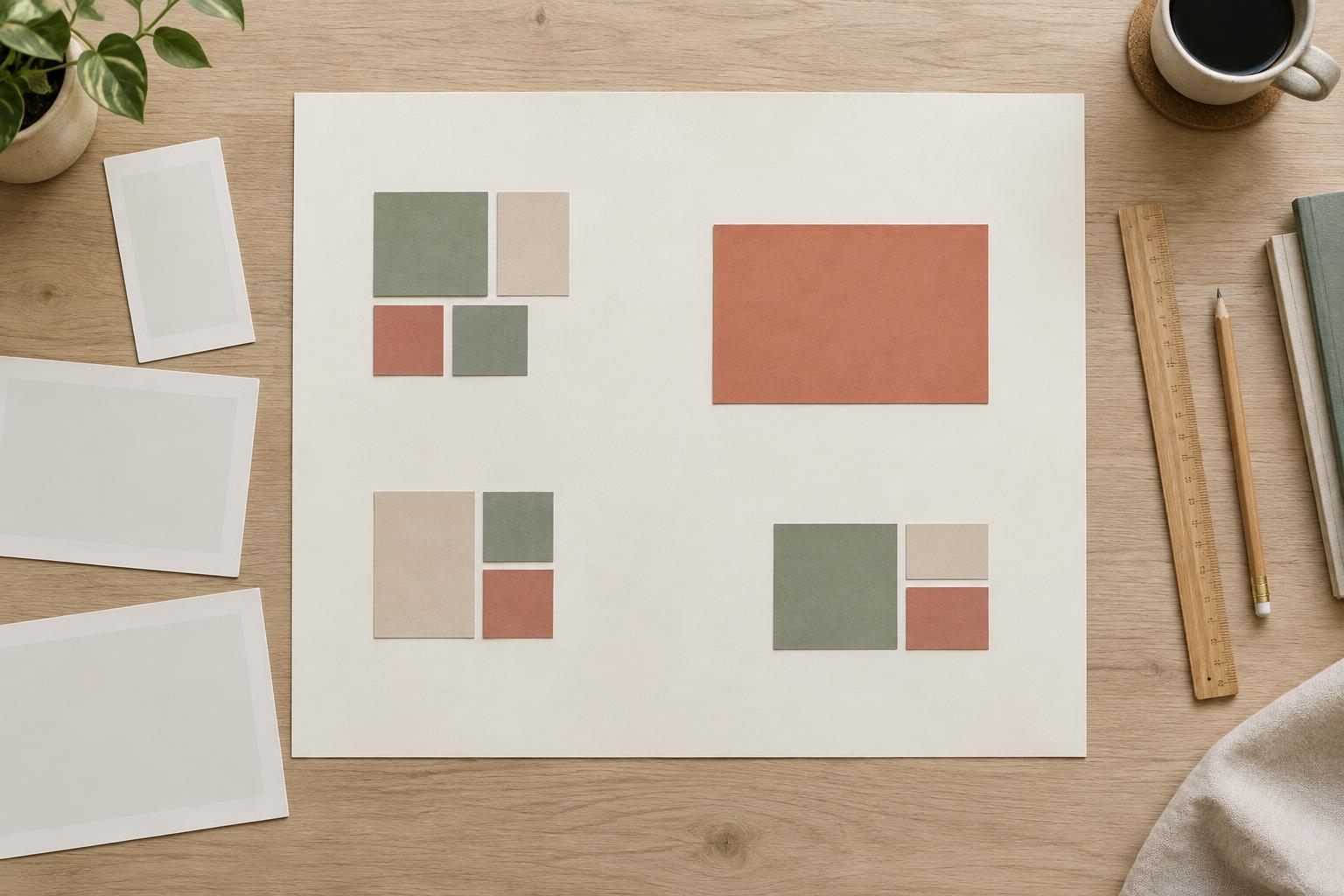
A useful way to work with a grid is to let elements span groups of columns. A title might stretch across most of the page, a main text block might take a narrower span, and a related image might fill the remaining space. Align the edges of these spans to grid lines. Repeating a few clear widths gives the page a sense of order while still allowing variety.
Pay particular attention to reading width. A body paragraph does not have to fill every column available to it. If a line feels tiring to follow, narrow the text span or increase the surrounding space. Likewise, avoid forcing short captions into a broad area simply because it is open. Use the grid to support the content’s shape, not to stretch content until it fills every slot.
You can also create hierarchy by changing spans. A large image may cross several columns while smaller images share a row; a prominent introduction may be wider than the paragraphs that follow. Check that these changes look intentional by aligning their edges with other elements on the page.
Use alignment to connect related elements
Columns do more than control width. Shared edges help readers understand which pieces belong together. Aligning a caption with its image, for example, creates a clearer relationship than placing the caption at an unrelated point on the page. Repeated starting edges can also guide the eye from a heading to the text beneath it.
Not every edge needs to align. A page can benefit from an image that extends beyond the main text area or a heading that breaks the usual pattern. Make those departures deliberate and limited. When every element breaks the grid, the grid stops helping; when nothing ever breaks it, the page can feel rigid. Contrast works best against a structure readers can recognize.
Test the grid with real content and different widths
Replace placeholder blocks with representative headlines, paragraphs, images, and captions as early as possible. Real content reveals problems that neat rectangles conceal: a heading wraps unexpectedly, a caption becomes cramped, or an image crop hides the important part of a picture. Adjust the grid or the element’s span when these problems recur rather than patching each instance separately.
For screen layouts, treat a wide-screen grid as one version of the structure, not a template to shrink indefinitely. At narrower widths, elements that sit side by side may need to stack, and margins or gutters may need to change. Preserve the relationships that matter—such as keeping a caption close to its image—even if the number of columns changes.
Finish by viewing the page without visible guides. Scan it quickly, then read through it. If the order is clear, the text is comfortable to read, and related elements still feel connected, the grid is doing its job. Its purpose is to make the page easier to use, not to call attention to itself.