Start with an invisible structure
Alignment is the practice of placing elements in a deliberate relationship to one another. A heading might share a left edge with the paragraph below it; an image might line up with the outer edge of a text column. These relationships help people understand what belongs together and where to look next. Without them, a layout can feel unsettled even when its colors, typefaces, and images are well chosen.
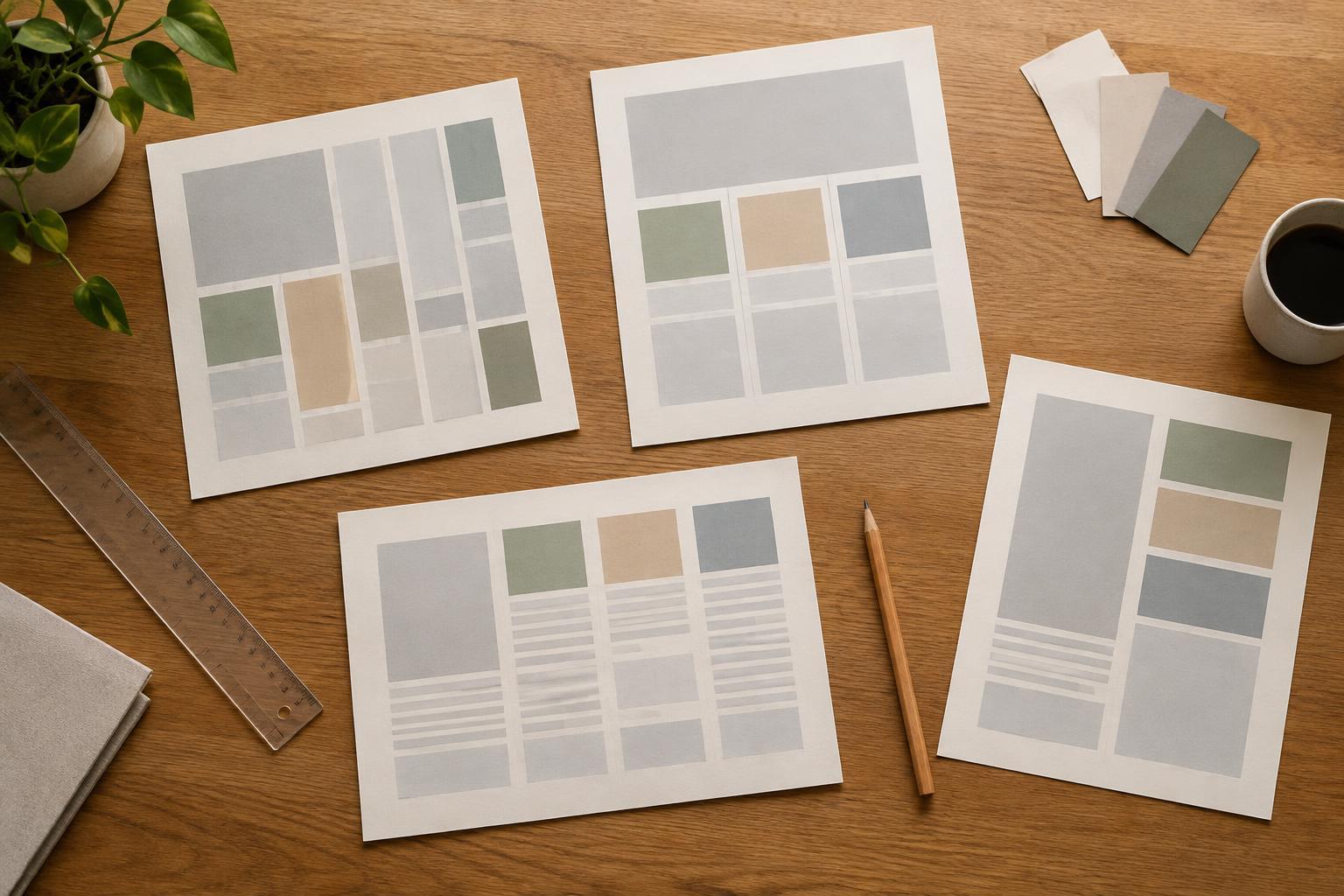
Before adjusting individual elements, decide where the main content should sit. For a simple page, that might mean one consistent left margin and a maximum width for the text. For a page with a sidebar, define the widths of both columns and the space between them. You do not need a complex grid to begin. A few dependable guides are more useful than many lines that nothing consistently follows.
Give related elements a shared edge
Shared edges make relationships visible. In a portfolio project card, placing the image, project title, and short description on the same left edge makes them read as one unit. If the title starts farther right for no clear reason, it may look detached. The same principle applies to navigation labels, form fields, captions, and buttons: choose an edge that supports the grouping, then repeat it.
Not every element has to align with every other element. A centered page title can work above left-aligned body copy, provided the change marks a meaningful shift in hierarchy. Problems arise when alignment changes without a purpose. If you are unsure about a layout, trace the left and right edges of its major blocks. Ask whether each new starting point helps explain the content or merely adds visual noise.
Use spacing to reinforce the structure
Alignment and spacing work together. Two blocks can share an edge yet still feel unrelated if the gap between them is too large. Conversely, elements placed close together may seem connected even when their edges are slightly inconsistent. Establish a small set of spacing intervals for recurring situations, such as the gap between a heading and its paragraph or between separate content sections. Consistency makes the page easier to scan.
Pay particular attention to repeated components. If a series of project cards uses the same image size and text alignment, uneven padding will stand out. Check the space inside each card as well as the space between cards. When a description wraps onto an extra line, decide whether card heights should remain equal or whether the layout can accommodate varied heights. Either approach can work; the important thing is that the resulting pattern looks intentional.
Account for what the eye sees
Mathematical alignment is a starting point, not an absolute rule. A round icon may look slightly smaller or farther from an edge than a square icon with the same dimensions. A logo with empty space inside its image file may appear offset even when its file is perfectly centered. In these cases, a small optical adjustment can make elements look more aligned. Make that adjustment after checking the underlying guides, so you do not use tiny nudges to conceal a larger structural problem.
Text needs a similar check. A short, bold heading and a long paragraph can share a left edge while carrying very different visual weight. Try comparing the layout at normal viewing size, not only while zoomed in. If the heading dominates too much, changing its size or the surrounding space may help more than moving it. Alignment should support a clear reading order, not force every piece of content into identical shapes.
Check the layout at different sizes
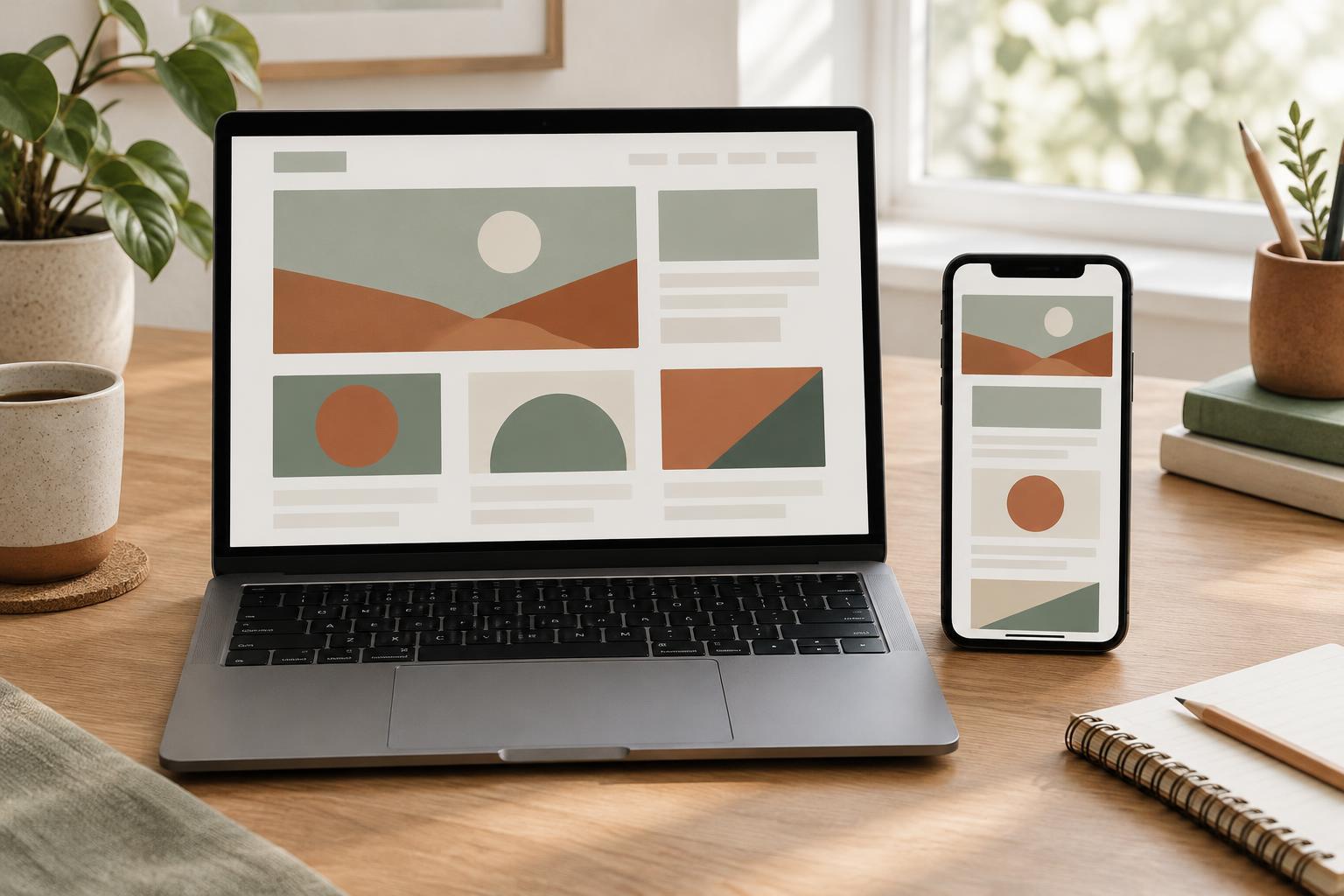
A desktop arrangement may lose its logic on a narrow screen. When columns stack, decide which edges should remain consistent. Often, a shared left margin for headings, images, and body text is enough to preserve order. Review long headings, buttons with variable-length labels, and images with captions; these are common places for accidental offsets to appear. Also check whether margins leave enough room for text to breathe.
For a final pass, temporarily remove decorative details and look at the main blocks. Can you identify the primary content column? Do related items share an edge and sensible spacing? Does a change in alignment signal a change in purpose? Then restore the details and view the design at a few realistic widths. If the structure remains clear without decoration and still works when content wraps, the layout is likely doing its job.