Start with the job the page needs to do
A desktop layout often has room for a wide navigation bar, several columns, decorative images, and supporting information beside the main content. On a smaller screen, simply shrinking everything makes text harder to read and controls harder to use. The better starting point is to ask what someone came to the page to do. A portfolio visitor might need to understand a project and find the next one. A potential client might need to see relevant work and find a way to get in touch.
List the page elements in order of importance before changing the layout. Keep essential content and actions prominent, then decide where supporting material belongs. This does not mean hiding anything that does not fit immediately. It means giving each element a sensible place in a narrower, usually vertical, reading path. If a sidebar contains useful context, for example, it may work better after the main article than squeezed beside it.
Rebuild the layout around available space
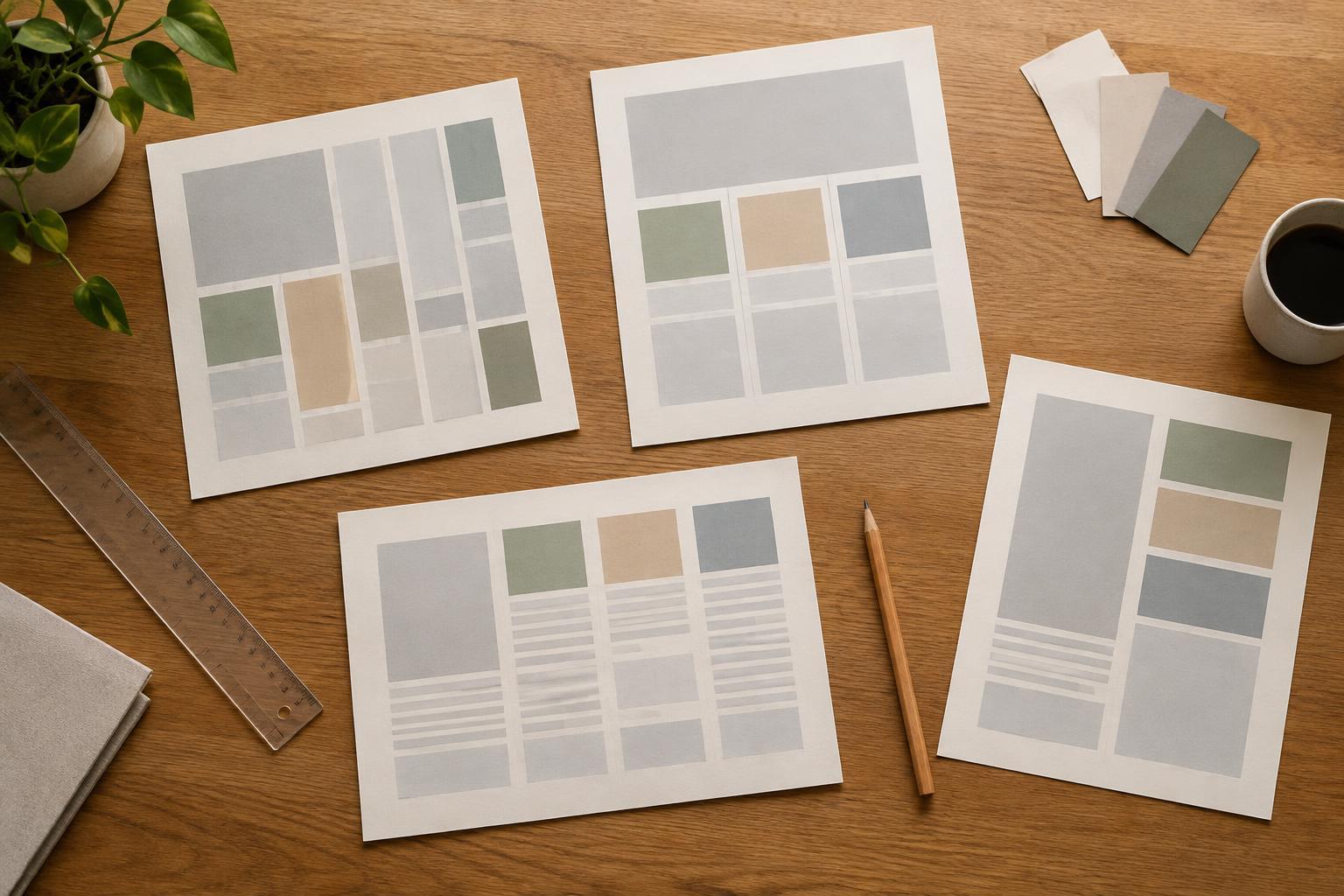
Look at the relationships between elements rather than treating the desktop grid as fixed. A row of project cards can become a single column; a text-and-image section can stack; a group of small controls can wrap onto another line. Let containers respond to the space they actually have, and set sensible limits so text does not stretch too wide on larger screens or press against the edges on smaller ones.
Choose layout changes where the content begins to feel crowded, not just because a familiar device width appears in a list of breakpoints. Resize the page gradually and watch for navigation labels colliding, cards becoming cramped, or headings breaking awkwardly. Those moments tell you where a change is needed. Intermediate widths deserve attention too: a layout that works on a large monitor and a narrow phone can still fail on a small laptop or tablet.
Be deliberate about order. When two desktop columns become one, check that the resulting sequence makes sense from top to bottom. A call to action that sat beside an explanation may need to follow it; an image that introduces a case study may need to appear before the details. Visual proximity on desktop does not automatically become a clear reading order when elements stack.
Make text and controls comfortable to use
Readable type matters more than preserving identical line breaks across screen sizes. Give body text enough space to read without zooming, keep line lengths manageable, and use consistent spacing to separate sections. Large display headings may need a smaller scale on narrow screens, but the hierarchy should remain clear: readers should still be able to distinguish the page title, section headings, captions, and supporting text.
Treat interactive elements as part of the layout, not as details to fix later. Links placed close together can be difficult to select, while a form that retains narrow desktop-sized fields wastes the space available in a single-column view. Allow buttons and fields enough room, give them clear labels, and leave visible space between neighboring actions. If navigation changes to a menu, make its label understandable and ensure important destinations remain easy to find.
Give images a purpose at each size
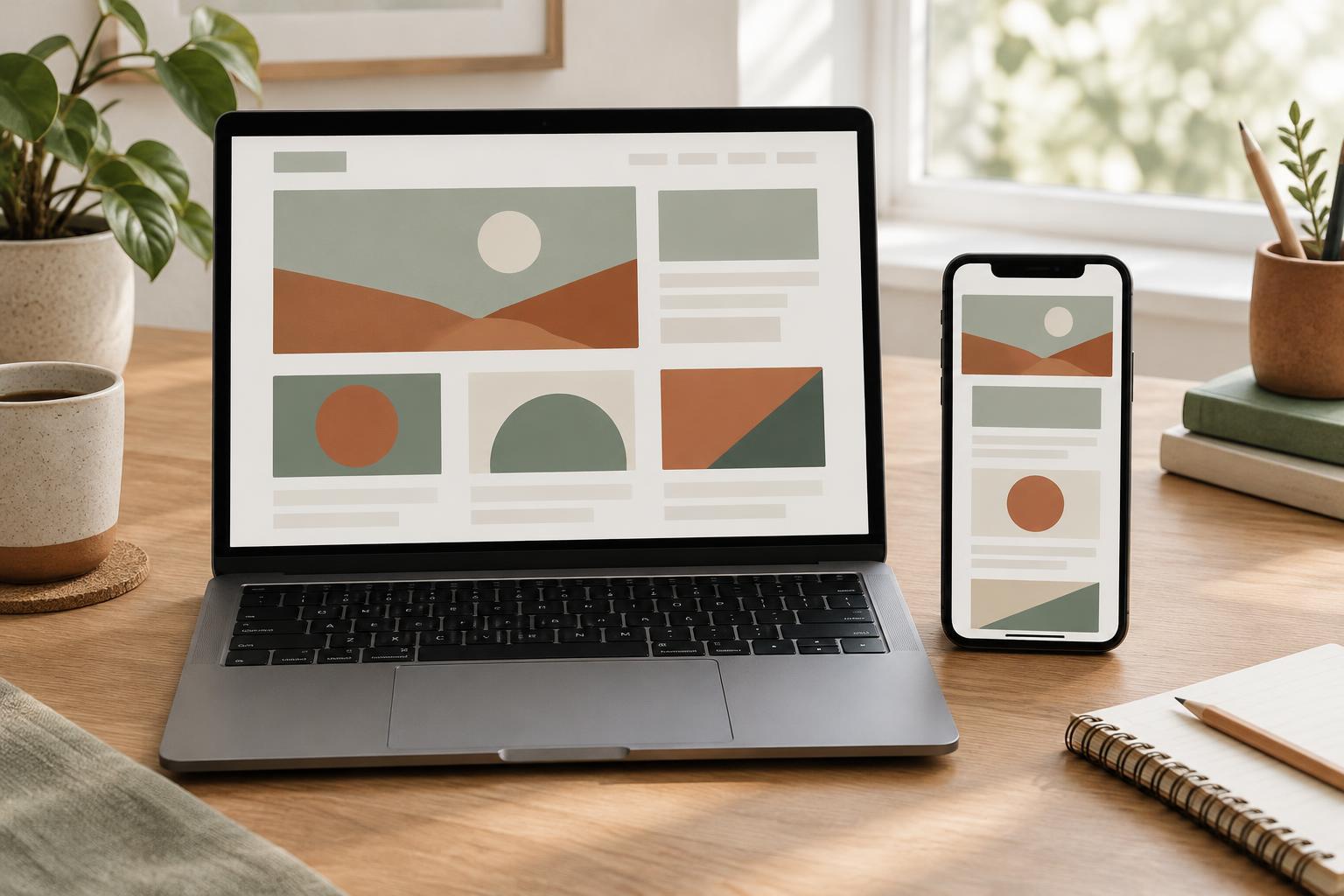
Images do not always need the same crop or position on every screen. A wide hero image may lose its subject when forced into a tall container, and a detailed interface screenshot may become unreadable when reduced to the width of a phone. Check what each image is meant to communicate. You might adjust its crop, place it below an introduction, or offer a closer view of a detail when the full image cannot carry the message.
Avoid letting images dictate a fixed page width. They should fit within their containers without stretching out of proportion. Captions should stay with the images they explain, and meaningful images should have useful alternative text. For decorative imagery, ask whether it still earns its space when visitors must scroll past it to reach the main content.
Test the flow, then refine the details
Review the adapted page as a complete experience rather than a collection of tidy components. Starting at the top, can someone tell what the page is about, move through it in a logical order, and complete its main action? Check for horizontal scrolling, cut-off text, overlapping elements, and controls hidden behind fixed headers or other interface elements. Try navigating by keyboard as well as by touch or pointer where possible.
Use a few different screen widths and real content during testing. Short placeholder titles can conceal problems that a long project name or detailed caption will reveal. If a section feels too dense, first consider its order, spacing, and wording before adding another visual trick. A successful smaller-screen layout is not a miniature desktop page; it is the same useful content presented with priorities that remain clear when space is limited.