Start with the job the icon needs to do
A small icon has little room to explain itself. Before drawing, decide what action or object it must represent and where it will appear. A navigation icon needs to be recognizable among neighboring controls; a status icon may need to remain distinct when someone glances at it briefly. That purpose should guide what you keep and what you remove.
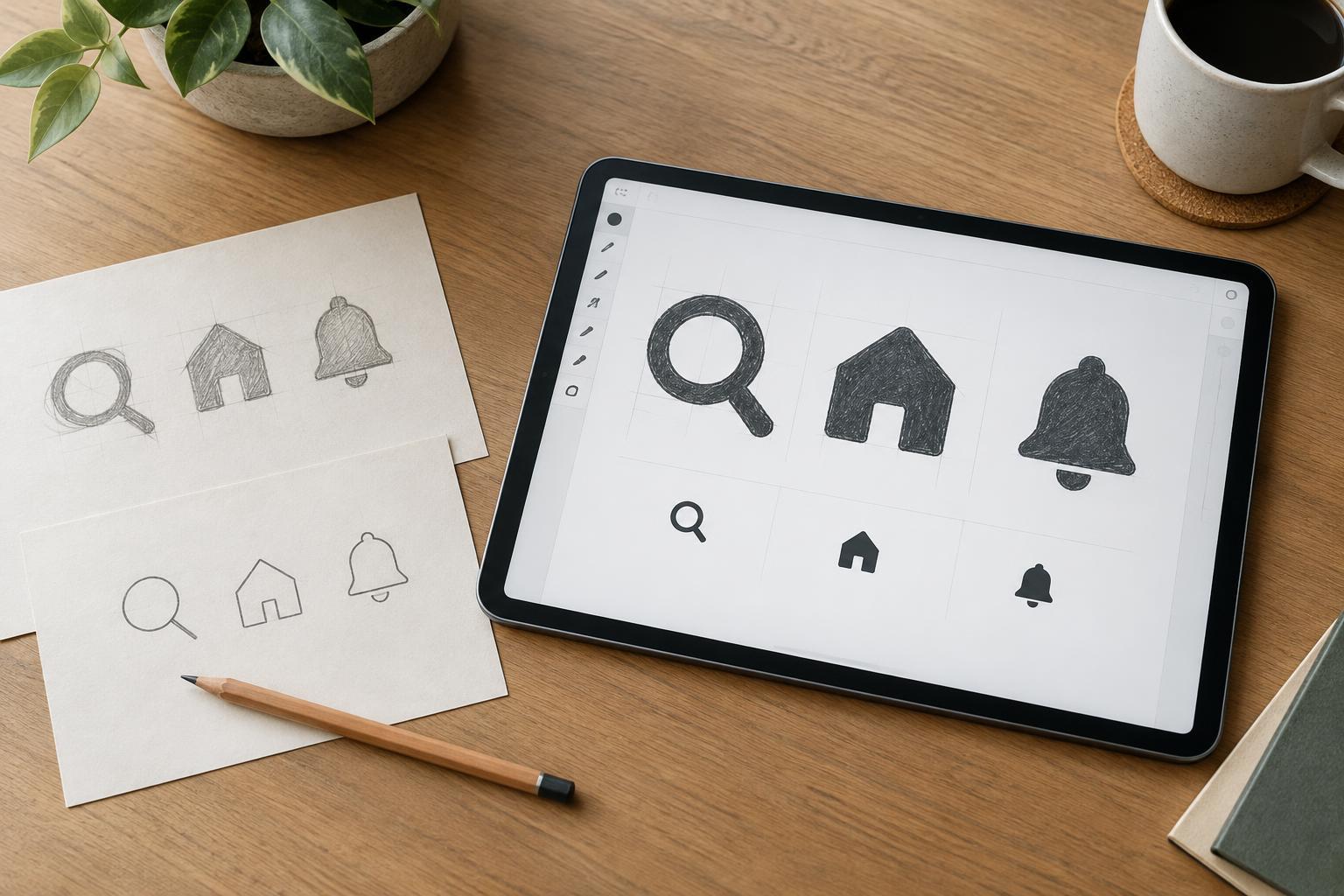
Sketch several simple ways to express the idea, then view them at the intended display size. Favor a recognizable overall silhouette over a detailed illustration. If the concept relies on tiny labels, textures, or several overlapping objects, look for a simpler visual cue. Sometimes the clearest choice is to pair the icon with a text label rather than asking the shape to carry the full meaning alone.
Remove detail without losing identity
Begin with the parts that make the subject distinguishable. For a folder, the tab and main container may be enough; seams, shadows, and a stack of papers may add noise. For an action such as sharing or downloading, keep the directional cue prominent. Shrink each draft early, because details that appear helpful while zoomed in can merge into dark patches at its final size.
Simplification does not mean making every icon generic. If two icons in the same set become hard to tell apart, give each a distinct silhouette, opening, or directional feature. Avoid relying on color alone to separate related actions, since icons may also appear in a single color or be difficult to distinguish under some viewing conditions. Shape should do most of the work.
Control strokes, gaps, and visual weight
At small sizes, narrow gaps can close and thin strokes can seem to disappear. Inspect the spaces inside and between shapes as carefully as the shapes themselves. Enlarge a critical opening, shorten a line that crowds another element, or remove an interior mark if it does not improve recognition. A slightly exaggerated feature often reads more clearly than a perfectly literal one.
Keep stroke widths and corner treatments reasonably consistent across an icon set, but judge the result by eye rather than by numbers alone. A diagonal can appear lighter than a vertical stroke of the same width, while a filled circle can appear heavier than an outlined square. Adjustments to scale and spacing can help icons feel balanced when placed side by side. Also leave enough space around each icon so its outer edges do not compete with nearby text or controls.
Design for the pixels people will see
Vector artwork stays editable at any scale, but the displayed icon still has to fit into a limited number of pixels. Preview it at the actual sizes your interface or asset set will use. At a small raster size, a line placed between pixel boundaries may look softer than one aligned more cleanly. Small position or stroke adjustments can improve sharpness, especially for simple horizontal and vertical edges.
Do not force every curve or diagonal onto a rigid grid if that makes the icon look awkward. Rendering varies by screen and software, and an icon that looks crisp in one preview may look different elsewhere. Treat pixel alignment as a tool for fixing visible problems, not as a rule that overrides the shape. If an icon must work at very different sizes, consider a simpler version for the smallest use rather than shrinking one detailed master unchanged.
Test the icon in its real setting
Place candidate icons in a mockup at their intended size, beside the other icons, labels, and controls they will accompany. Check both light and dark backgrounds if the design will use them. Look for icons that appear smaller than their neighbors, lose an important gap, or could be mistaken for another action. Viewing the set at a normal distance is often more revealing than inspecting individual paths at high zoom.
Make one change at a time and preview again. You might widen an opening, strengthen a thin line, or remove a decorative detail. If the icon remains ambiguous, test whether a label, tooltip, or different concept would serve the user better. The goal is not to preserve every feature of the original drawing; it is to make the intended meaning easy to grasp at the size where the icon will actually be used.