Decide what the image needs to show
Cropping removes part of an image to fit a frame or strengthen its composition. Before moving the crop handles, decide what a viewer needs to notice first. In a portrait, that might be a face and its expression. In a product image, it could be the product’s shape or a defining detail. In a workspace photograph, the subject might be a person’s hands rather than the entire desk. Naming the focal point gives you a reason for each cut.
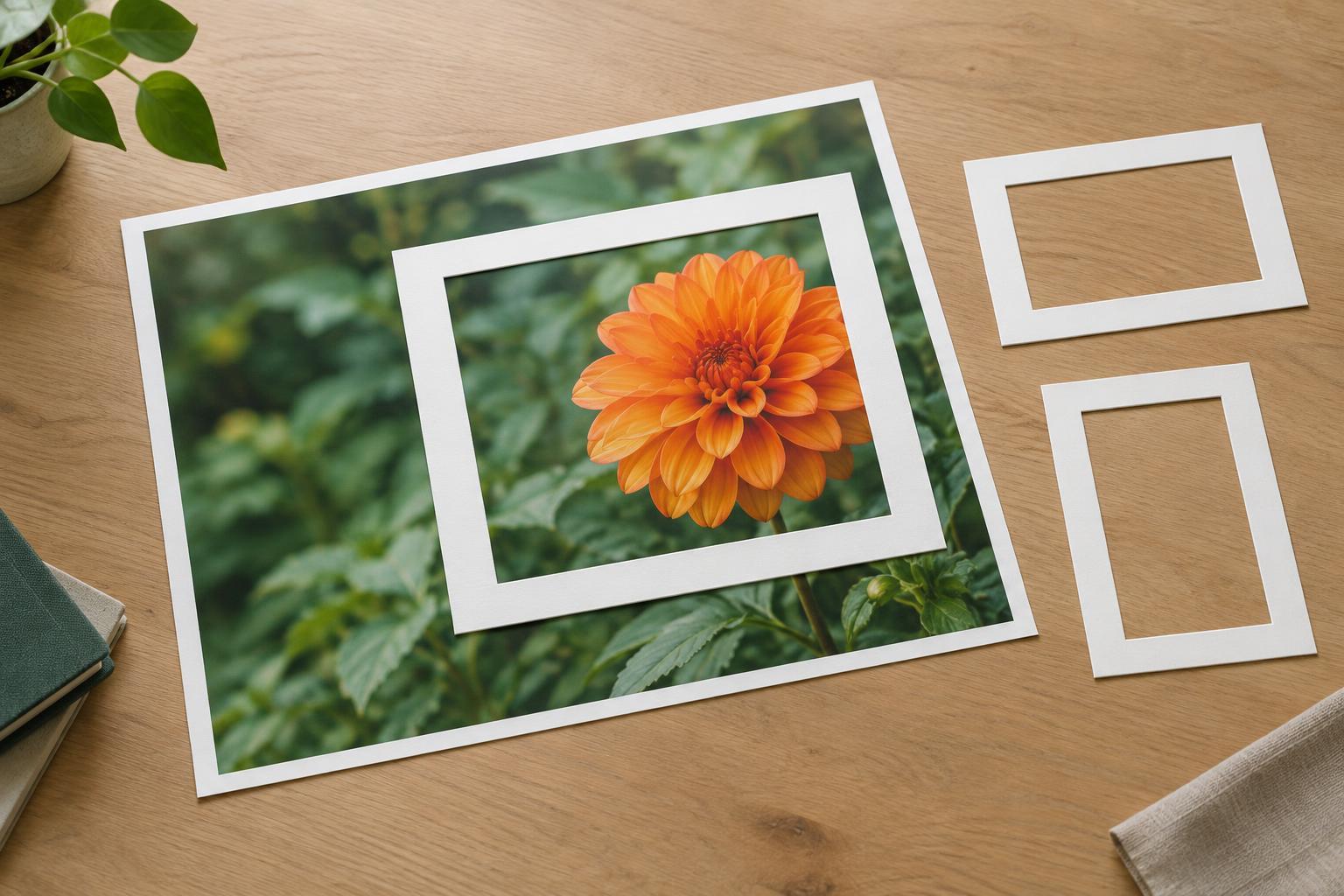
Then look for details that support that focal point. A hand holding an object, a shadow that reveals its shape, or a little space in the direction someone is looking may help the image make sense. Other details may be pleasant but unnecessary. Try covering the edges with your hands or a temporary frame: if the image still communicates its purpose, those edges are candidates for removal.
Choose the frame before refining the crop
The space where an image will appear often determines its aspect ratio. A wide website banner, a square portfolio thumbnail, and a tall social graphic may all need different crops of the same photograph. Start with the intended frame rather than perfecting one crop and forcing it into every layout. If you control the layout, consider changing the frame to suit the image instead of cutting away an essential part of the subject.
Make a rough crop at the correct ratio, then check what remains around the focal point. Avoid cutting exactly through important features such as a face, a product edge, or the hands performing an action. A close crop can feel deliberate, but an almost-close crop may look accidental. Give the subject enough room to read clearly at the size people will actually see.
Position the subject with purpose
Centering the focal point is a reliable starting point, not a rule. Moving it slightly to one side can make room for a headline or preserve useful context. If a person looks toward the right, leaving some space on that side can make the composition feel less cramped. For an object with a strong shadow or reflection, keeping that visual detail may provide balance.
Judge the crop as a whole rather than relying on a composition grid alone. Ask where your eye lands first, where it moves next, and whether a bright or high-contrast background element competes with the subject. A small shift in position may solve the problem without a tighter crop. If no position works, choose another image or adjust the layout; an image does not have to fill every available frame.
Check crops at different sizes
A crop that works in a large editor window can fail as a small card or on a narrow screen. Reduce it to its intended display size. Can you still recognize the subject? Is the key detail large enough to see? If text sits over the image, is there sufficient quiet space behind it? Check the text placement separately from the crop so you do not sacrifice the subject just to accommodate a headline.
Responsive layouts deserve an extra check because the visible area may change with the screen width. On a website, a fixed-height image container can conceal different parts of an image on desktop and mobile. Preview both. If your publishing tool offers image-position controls, move the visible area toward the focal point. If it supports separate images for different layouts, a dedicated narrow crop may work better than one compromise crop.
Keep an editable original and make a final pass
Save the original image and create cropped versions from it rather than repeatedly cropping an exported file. Name versions by their use, such as banner, thumbnail, or portrait, so the correct crop is easier to find later. This also lets you revisit a decision when a layout changes without trying to recover pixels that are no longer in the cropped file.
Before publishing, review each crop in context. Check that the focal point is visible, important edges are not awkwardly cut, and nearby text or interface elements do not cover it. A successful crop does more than fit the dimensions: it helps the viewer understand the image quickly. When in doubt, compare two versions at their final size and choose the one that makes the subject easiest to read.