Start with a visitor’s path
A portfolio is more than a gallery. Visitors may need to open a menu, find a project, follow a case study, view examples and reach a contact link. Check that whole path rather than testing only the homepage. Choose a representative project page with several images, then include any unusual features elsewhere on the site, such as filters, slideshows or pop-up views.
Make two passes. First, set your mouse aside and use only the keyboard. Then review the text associated with each important image. Keep a short list of the page, element and problem you find; “project menu cannot be opened with Enter” is more useful than “navigation needs work.” Repeat the checks after making changes, especially if you use a template or component shared across pages.
Follow the keyboard focus
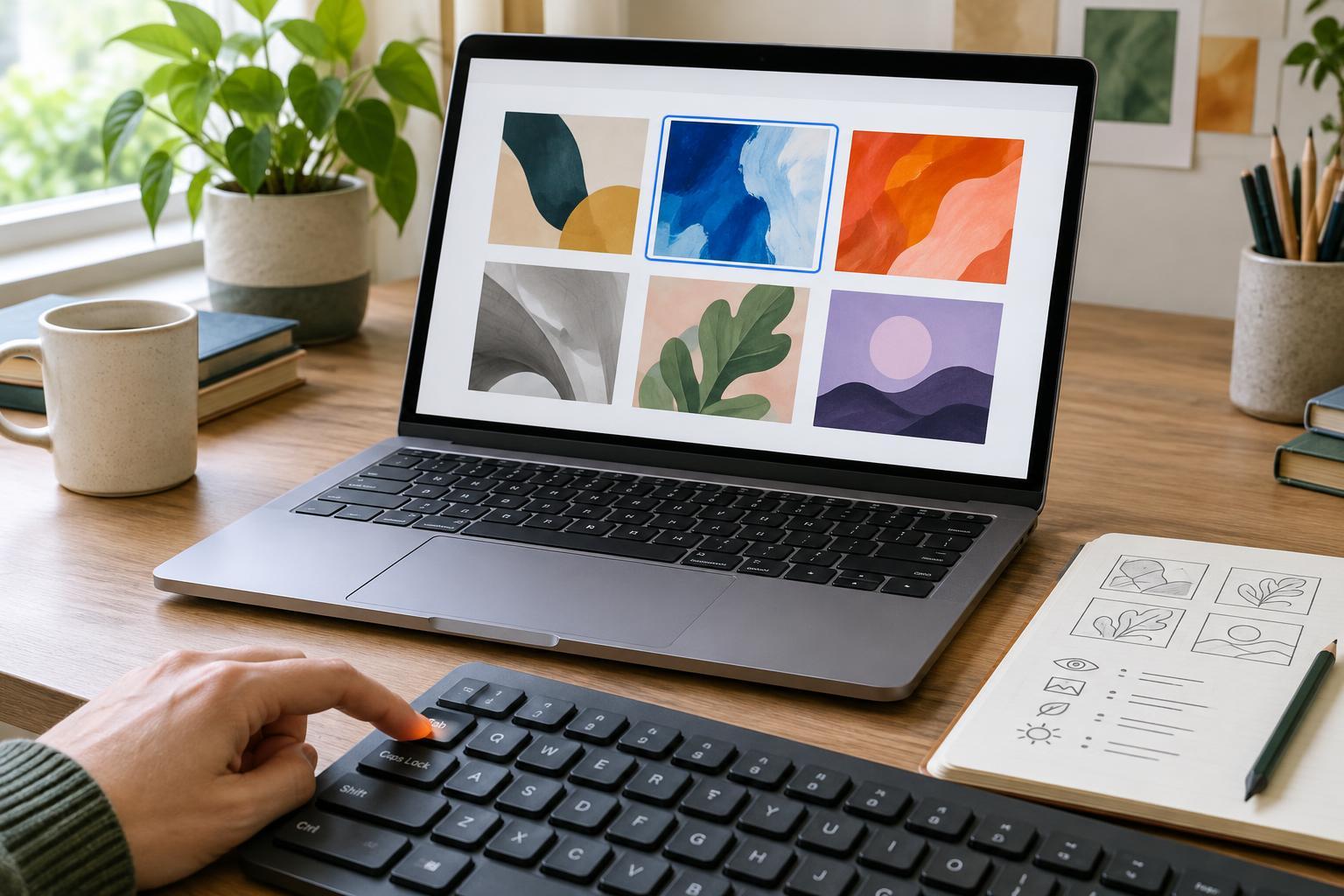
Reload the page and press Tab. You should be able to see which link, button or form control currently has focus. Continue through the page and ask whether the order makes sense: navigation before main content, project links in a predictable sequence, and contact options where you expect them. Use Shift+Tab to check that you can move backward. A focus indicator that disappears against an image or background is difficult to use, even when the control itself works.
Try each interactive element as you reach it. Enter should open a link; buttons should respond to Enter and Space. If a menu, filter or image viewer opens, confirm that you can operate it, close it and continue without losing your place. Check for controls that appear only when a pointer hovers over an image. If an image tile opens a project, its keyboard-focusable control needs a clear name, not just a visual hover effect.
Look beyond whether Tab works
A page can technically accept keyboard input and still be frustrating. On a long portfolio, a skip link can let visitors bypass repeated navigation and reach the main content. Project lists should not force someone through dozens of unnecessary controls before they reach a case study. If you use a slideshow, make its next and previous controls identifiable and avoid changing slides before a visitor has time to examine them.
Pay particular attention to pop-up image views and contact forms. When a dialog opens, focus should move into it; when it closes, focus should return to a sensible place, such as the thumbnail that opened it. A form needs visible labels, a logical sequence and feedback that identifies what needs attention. If a custom feature is hard to make usable, a simpler link to a project page may serve visitors better.
Describe what each image does
Image descriptions are not miniature captions for every visual detail. They help convey information a visitor would otherwise miss. For a project thumbnail that links to a case study, describe the destination or project clearly, such as “View the identity design case study for North Street Bakery.” If the nearby link text already says that, a repeated description may add clutter; consider how the image and text work together as one link.
Inside a case study, describe the details that support your point. If the paragraph discusses a redesigned checkout, an image description might identify the product page and the clearer checkout button. If an image is purely decorative and adds nothing beyond nearby text, it can have an empty description. Avoid labels like “image” or “screenshot” alone, strings of keywords, and descriptions that claim a design improved results you have not established.
Make the review part of publishing
Check images in context rather than writing descriptions from a file list. Ask what a visitor needs to understand at that point in the story: the overall composition, a specific design choice or the difference between two versions. Text inside an image may also need to appear as readable page text when it carries essential information. A description cannot replace a detailed explanation of a complex diagram or process.
Before publishing a new project, run through a small routine: Tab from the top of the page to contact, operate every control, inspect visible focus, and review descriptions for thumbnails and case-study images. If you can, have someone unfamiliar with the site try a task without a mouse and tell you where they hesitate. The goal is not to narrate every pixel or add more controls. It is to make the work, the story behind it and the way to get in touch available through more than one way of browsing.