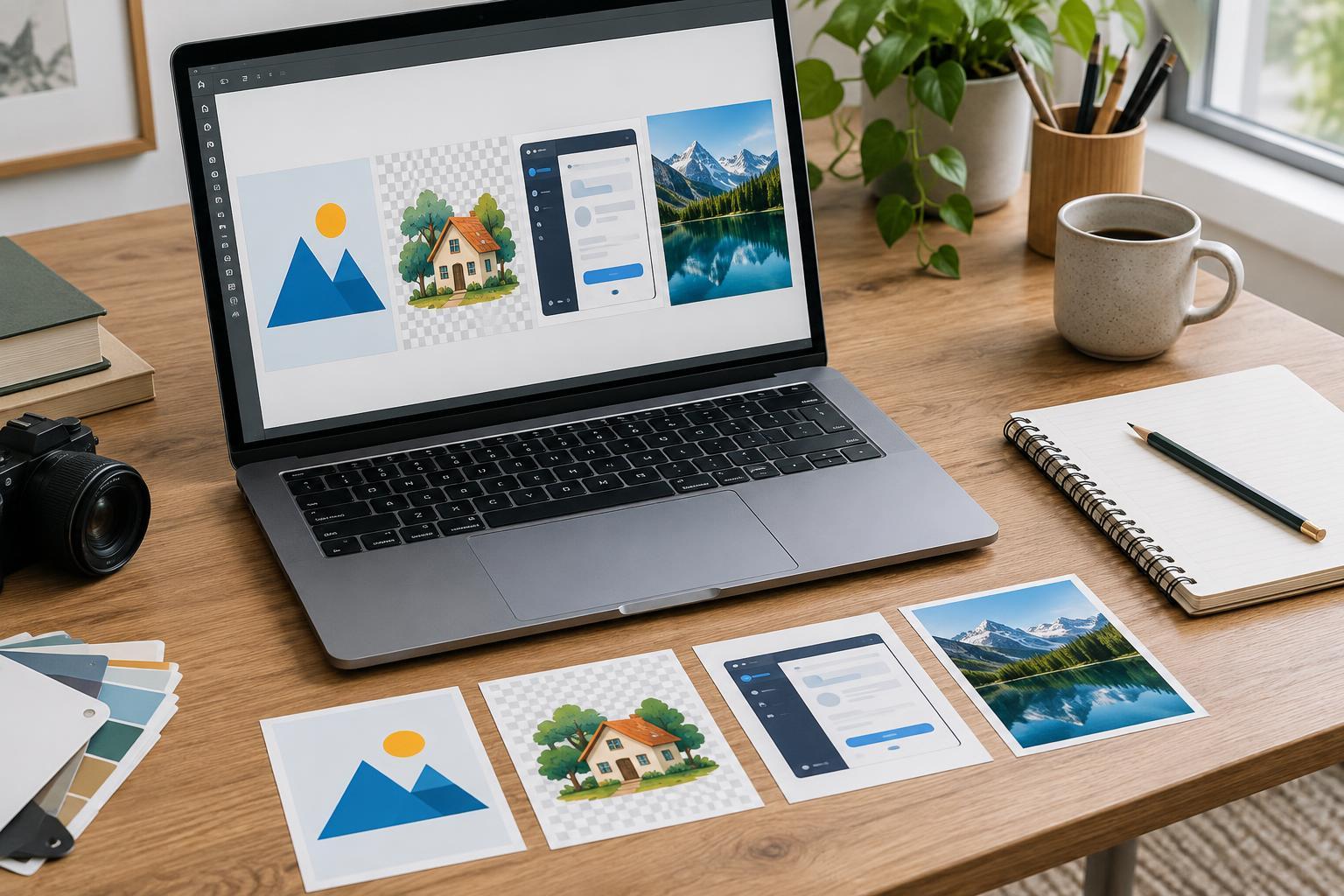
Start with the image, not the file extension
An image format is a design decision as well as a technical one. It affects how sharp an image looks, whether its background can be transparent, and how much data a page or download must carry. There is no single best format for every asset. A photograph and a simple icon have different needs, even if both appear in the same design.
Before exporting, ask four questions: Is the artwork made of shapes or pixels? Does it need transparency? Will it appear at several sizes? Where will the finished file be used? The answers usually narrow the choice quickly. For web projects, it also helps to keep an editable source file separate from the exported image. An export is a delivery copy, not necessarily the best file for future revisions.
Choose SVG for simple artwork that must scale
SVG describes shapes, lines, and text as vector artwork. It is a strong choice for logos, icons, diagrams, and simple illustrations that need to stay crisp at different sizes. A single SVG can work in a small navigation bar and a larger page heading without becoming blurry. SVG also supports transparent backgrounds.
Complex artwork is not automatically better as SVG. A vector file with many detailed paths can become difficult to edit or unexpectedly large. Photographs are generally better suited to pixel-based formats. Check SVGs that contain text, too: if the intended font is unavailable where the file is displayed, the result may change. Converting essential lettering to shapes is one option when preserving its appearance matters.
Treat SVGs from unfamiliar sources with care, particularly when adding them to a website. They can contain more than visible drawing instructions. Use a trusted export process and follow the requirements of the platform where the asset will be uploaded.
Use PNG when clean pixels or transparency matter
PNG is useful for screenshots, interface details, pixel art, and graphics with sharp edges. Its lossless compression preserves the exported pixel detail, making small text and fine lines less likely to acquire the visible artifacts associated with JPEG compression. PNG also supports partial transparency, which is helpful for placing a graphic over different backgrounds.
The trade-off is file size. A large photographic image saved as PNG can be much heavier than a suitable JPEG or WebP version without looking meaningfully better on the page. PNG also has fixed pixel dimensions: a small PNG enlarged far beyond its original size will look soft or blocky. If a logo is available as clean vector artwork, SVG is often a more flexible export than a large PNG.
Pick JPEG or WebP for photos and mixed imagery
JPEG remains a practical choice for photographs and images with gradual changes in color and tone. It can make these files much smaller by discarding some image information. That makes it less suitable for tiny text, crisp interface elements, or graphics that need a transparent background. Repeatedly editing and saving a JPEG can also add visible degradation, so make changes in a source file and export a fresh copy.
WebP is a versatile option for web images. It can handle photographs as well as graphics with transparency, and it often offers a useful balance of quality and file size. It is worth comparing against JPEG for photos and PNG for graphics rather than assuming it will always win. If an image must be delivered to a client, uploaded to a specific service, or opened in a particular app, confirm that the destination accepts WebP before choosing it as the only file.
Export for the place the image will actually appear
A dependable workflow starts with the required display size. Export a pixel-based image with enough dimensions for its intended use, but avoid sending an enormous file to fill a small space. For JPEG and WebP, try a quality setting, inspect the result at its actual display size, and adjust if you see smudged detail or distracting artifacts. For PNG, check whether transparency is needed; if it is not, a different format may produce a lighter file.
Finally, preview the asset against its intended background and in the layout where it will appear. Look for halos around transparent edges, unreadable text in screenshots, unexpected color changes, and crops that hide important content. Keep filenames descriptive and retain the editable original. Those small checks make format selection less of a guessing game: choose for the artwork, export for the destination, and judge the result by what viewers will see.